How to Get the Transcript of a YouTube Video (Computer, Phone, and Download)
Open any YouTube video's transcript beside the video with a Chrome extension, search it, switch or translate the language, and copy or download it as text, SRT or VTT. Plus YouTube's built-in transcript and what to do when there is none.
00:05:00 · OCT 13, 2026
Quick answer
Open the transcript with our Chrome extension
- Add GetYouTubeTranscript from the Chrome Web Store.
- Open any video on youtube.com.
- The transcript is already open on the right. There is nothing to expand or click.
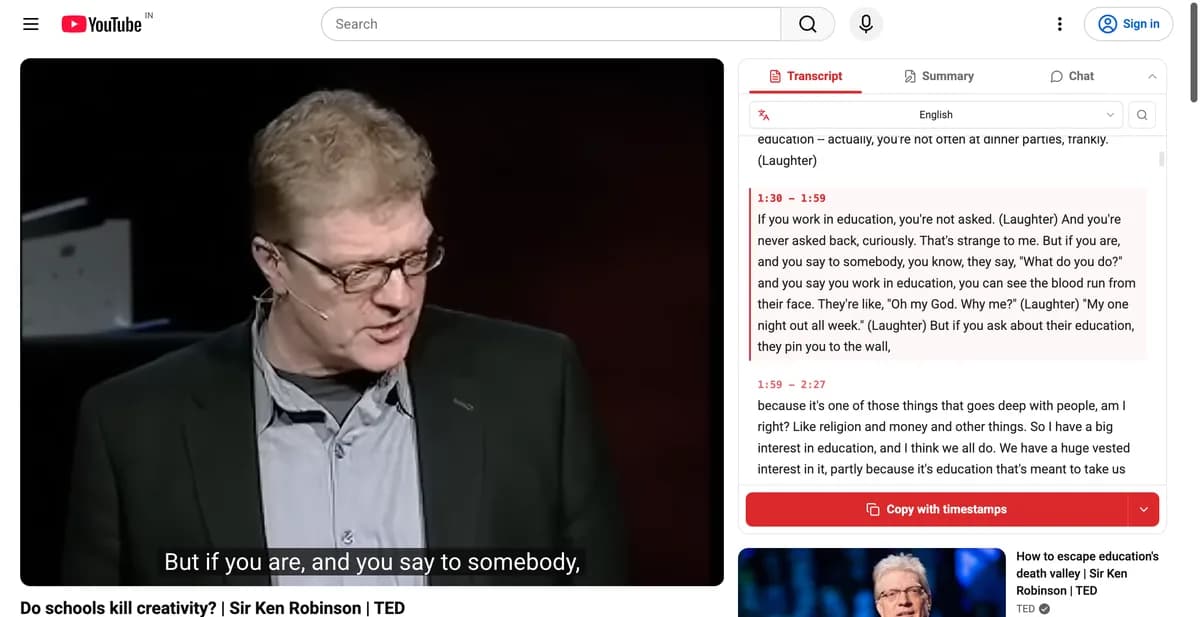
Each block has a time range. The block being spoken is highlighted as the video plays, and clicking a block jumps the video to that moment. More on what it does is on the extension page.
Search or change the language
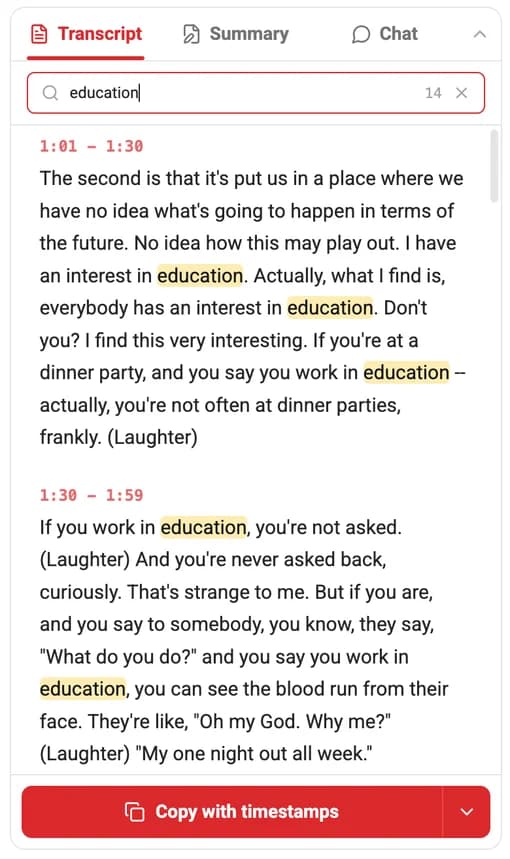
- Find a word: click the magnifying glass and type. Every match is highlighted and the count shows in the search box.
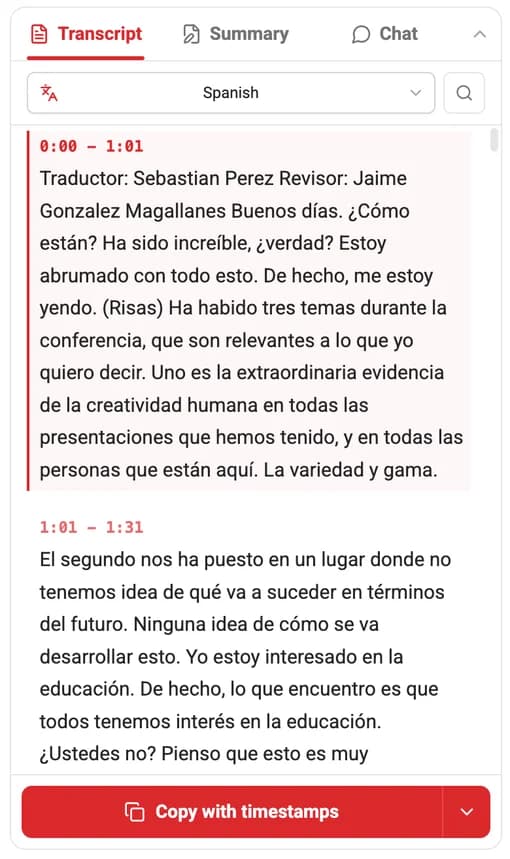
- Change language: open the language menu at the top. Captions lists every track the video has (this TED talk has 65). Translate to offers machine translations when the language you want is not there. Tracks marked "auto" are YouTube's speech recognition, not captions the creator wrote.
Copy or download the transcript
- Copy with timestamps: the red button copies the whole transcript, each block under its time range.
- Without timestamps: open the arrow next to it and choose Copy text only.
- As a file: choose Download .txt from the same menu.
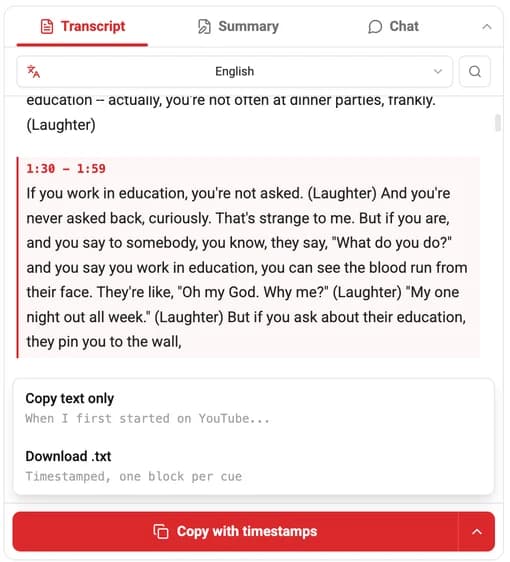
The Summary and Chat tabs work on the same video: a written summary, or questions answered from the transcript.
On a phone or without the extension: our website
- Copy the video link from the address bar, or from Share in the YouTube app.
- Paste it on the GetYouTubeTranscript homepage and click Get Free Transcript.
- Click Copy for the whole text, or Download for a plain text file. When timestamps are available, you can also download subtitles as SRT or VTT.
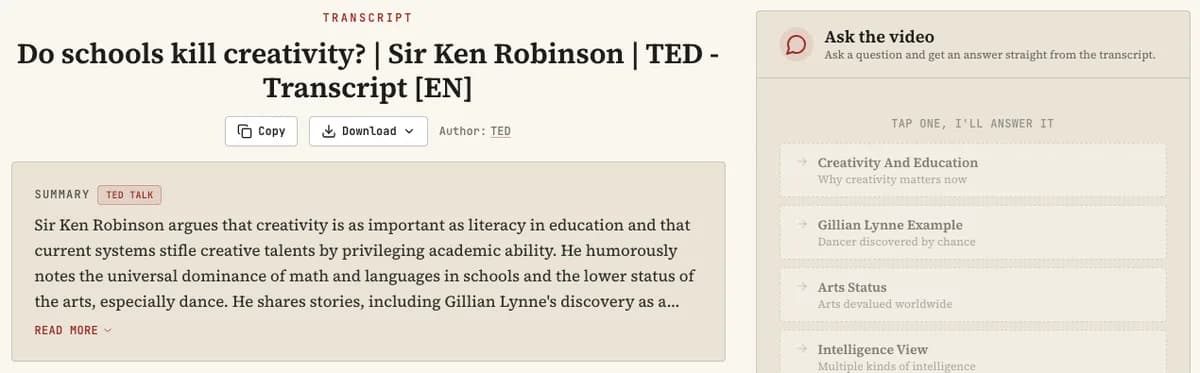
Export formats explains TXT, SRT, VTT, JSON and the rest. Developers can fetch transcripts in code with the transcript API.
YouTube's built-in transcript
YouTube can show a transcript too, for reading along. It has no copy or download button.
- On a computer: click the description under the video to expand it, scroll to Transcript and click Show transcript. It opens in a panel called In this video. The three-dot menu there has Toggle timestamps, and the language menu is at the bottom.
- In the YouTube app: tap the video title to open the description, scroll to Transcript and tap Show transcript.
No transcript at all?
A transcript needs captions. If a video has none, YouTube shows no Show transcript button and the extension has nothing to load. Common reasons:
- The creator turned captions off or never added any.
- The video was uploaded recently, or is a live stream, and automatic captions are not ready yet.
- The speech is in a language YouTube does not caption automatically.
- It is mostly music or has little clear speech.
More causes and fixes are in YouTube captions not working.
Your own videos: download from YouTube Studio
If you own the channel, open YouTube Studio, go to Subtitles, pick the video and language, and use the menu next to the caption track to download the file. This only works for videos on channels you manage.
Frequently asked questions
Can I download a transcript directly from YouTube?
No. YouTube shows the transcript in a panel next to the video but has no copy or download button for it. Our Chrome extension adds both: copy with or without timestamps, or download a .txt file. Owners of a video can also download its caption file from YouTube Studio.
Why is there no transcript for a video?
The video has no captions to read. Usually the creator turned captions off, the video is too new or still a live stream so automatic captions are not ready yet, or the speech is in a language YouTube does not caption automatically. Music with little speech often has none either.
How accurate are YouTube transcripts?
Captions the creator uploaded are usually accurate. Automatic captions, marked "auto" in the language list, are machine speech recognition: good on clear speech, weaker on names, jargon, accents and noisy audio. Check important quotes against the video.
Can I get the transcript in another language?
Yes. In the extension, pick a language from the menu above the transcript. Captions lists the tracks the video has, and Translate to offers machine translations. On YouTube itself, use the language menu at the bottom of the transcript panel.
Does this work on the YouTube app for iPhone and Android?
The YouTube app shows a transcript (open the description, scroll to Transcript, tap Show transcript) but cannot copy or download it. To save the text on a phone, paste the video link into our website in your phone browser.
Related
- YouTube Captions by the Numbers: What 30,000 Transcripts Show (2026)
- Faceless YouTube Channel with AI: Research with Transcripts, Write Scripts YouTube Will Pay For
- How to Translate a YouTube Video: Transcript and Subtitles in Any Language
- How to Get a YouTube Transcript into ChatGPT (Any Plan, Business Plugins and Codex)
- How to Get a YouTube Transcript into Claude (Claude.ai, Desktop and Claude Code)
- We Benchmarked Three Ways to Get a YouTube Transcript: Home Connection vs Cloud Server
- YouTube Transcript Errors Explained: IpBlocked, RequestBlocked, TranscriptsDisabled and the Rest
- We Read 191 Starter Story Founder Interviews. Here Is What Actually Got Them Customers
- n8n YouTube Transcript Failing on Your Server? Why YouTube Blocks It and How to Fix It
- YouTube API Quota Exceeded: Causes and Fixes
- YouTube Transcript API Rate Limit: What It Is and How to Handle 429s
- YouTube Transcript MCP Server: Setup Guide for Claude and Other AI Tools
- YouTube Transcripts in n8n: HTTP Request Workflow Guide
- Migrating from Supadata: A Field Guide
- How to Get YouTube Transcripts in Python
- Migrating from TranscriptAPI.com: A Field Guide
- Build an AI YouTube Video Summarizer with LangChain and Next.js
- How to Build a RAG Pipeline with YouTube Transcripts
- The Best YouTube Transcript APIs in 2026
- GetYouTubeTranscript vs TranscriptAPI
- GetYouTubeTranscript vs youtubetotranscript.com
- GetYouTubeTranscript vs youtube-transcript.io
- GetYouTubeTranscript vs NoteGPT
- GetYouTubeTranscript vs Tactiq
- GetYouTubeTranscript vs Glasp
- GetYouTubeTranscript vs Eightify
- GetYouTubeTranscript vs Supadata
- GetYouTubeTranscript vs DownSub
- GetYouTubeTranscript vs youtubetranscript.dev